Gemini Omni Video Generation Guide: From a Single Image to a Finished Clip, with GPT Image 2 as the First Frame
Gemini Omni is Google's omnimodal video model. Specs, pricing, vs Veo 3.1 & Sora 2, plus a GPT Image 2 first-frame image-to-video workflow with 4 field cases.
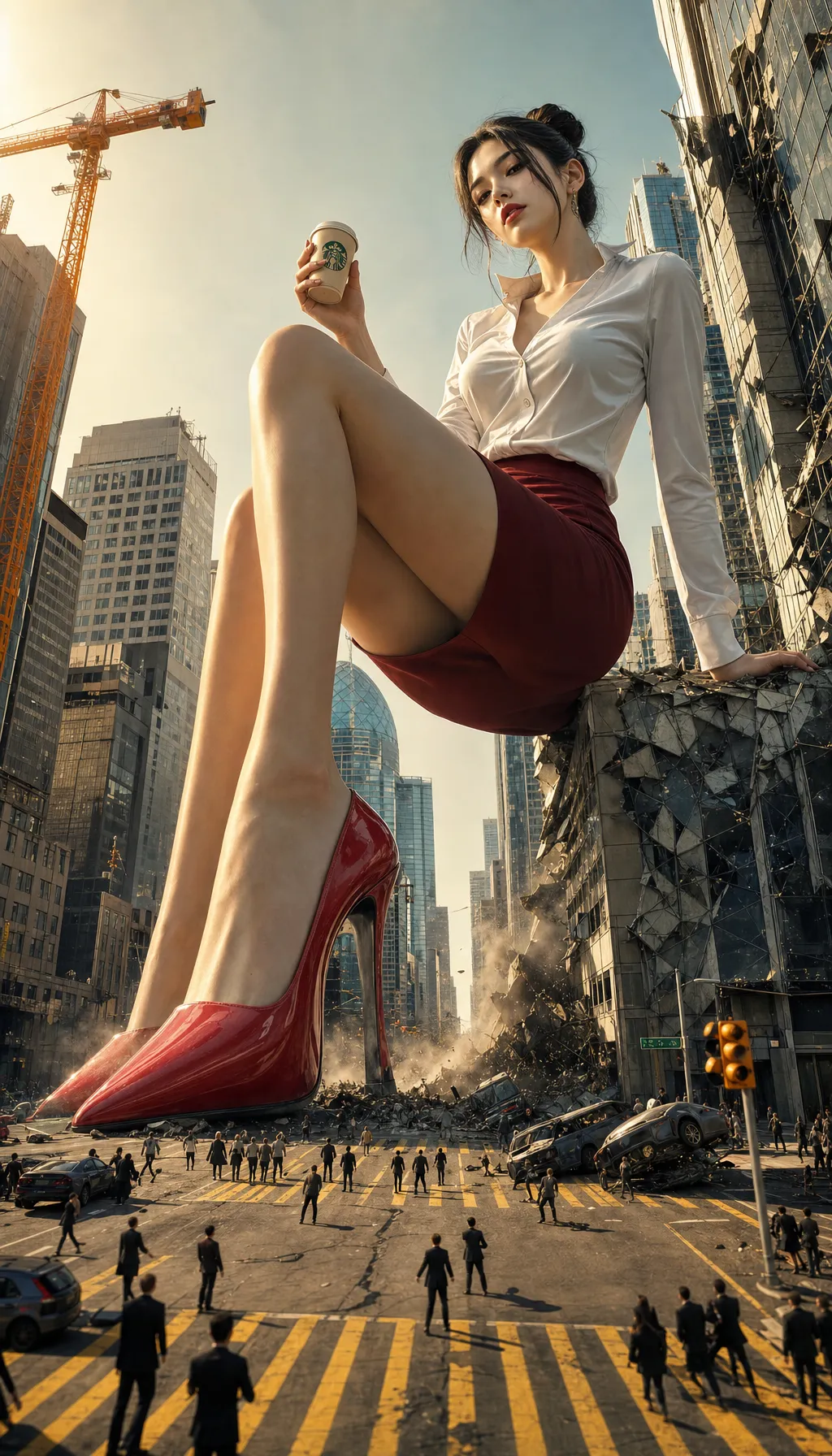
At Google I/O 2026 in May, Google launched Gemini Omni — an omnimodal model promising to "generate any output from any input." Text, images, video, and audio can be combined freely as input to produce or edit video. The first commercial version, Omni Flash, is already live in Gemini App, Google Flow, and YouTube Shorts.
For content creators, what actually changes the game isn't "yet another video generator." It's two things:
- Conversational editing — change a character, background, or prop in a video with a single sentence, no prompt rewriting, no regenerating from scratch
- Character consistency — characters stop "changing faces" across edits; the model finally has cross-shot "memory"
And for workflows built around static image generation, there's an even more practical implication: image-to-video is one of Gemini Omni's core input modes. The first frame you carefully craft in GPT Image 2 can directly become a moving clip. To try it hands-on, our AI video generator is built around image-to-video as its core creation mode.
This article covers three things: what Gemini Omni actually delivers (with comparisons against Veo 3.1 and Sora 2), why it's a natural pairing with GPT Image 2, and a replicable "still image → finished clip" workflow.
1. What Is Gemini Omni: Specs & Pricing
The hard numbers first (as of August 2026):
| Dimension | Spec |
|---|---|
| Input | Text / image / video / audio, any combination |
| Output | Video (primary), images, audio |
| Resolution | 720p, 24 FPS |
| Duration | 3–10 seconds |
| Aspect ratios | 16:9 or 9:16 |
| Pricing | ~$0.10 / second |
| Access | Gemini App, Google Flow, YouTube Shorts (Omni Flash) |
| Foundation | Google's world-model research |
Its positioning differs from the Veo line: Veo is the "generator," Omni is the "editor + generator." Veo 3.1 handles generating high-quality clips from scratch (1080p, native audio, strong physical realism), while Omni handles iteratively modifying them conversationally after generation — "swap this character into a red dress," "make it nighttime," "pull the camera back" — with every round of edits preserving character and scene consistency.
2. Head-to-Head: Omni vs Veo 3.1 vs Sora 2
| Dimension | Gemini Omni | Veo 3.1 | Sora 2 |
|---|---|---|---|
| Duration | 3–10 s | 4/6/8 s (extendable) | ~6 s |
| Resolution | 720p | up to 1080p | up to 1080p |
| Native audio | Yes | Yes, strongest | Yes (dialogue + SFX sync) |
| Multi-turn conversational editing | Core capability | Limited | Limited |
| Character consistency | Excellent (persists across edits) | Good | Good |
| Image-to-video | Any input combination | Reference images | Supported |
| Pricing | ~$0.10/s | $0.05–0.40/s | Credit-based |
Selection guide:
- Iterative work, teams aligning on direction → Gemini Omni (conversational editing kills retry costs)
- Maximum single-clip quality and audio, one-shot delivery → Veo 3.1
- Already in the OpenAI ecosystem, social-style shorts → Sora 2
All three support image-to-video, but Omni's edge: an imperfect first frame isn't fatal — you can keep fixing it conversationally after generation.
3. Why GPT Image 2 + Gemini Omni Is the Golden Pairing
The quality ceiling of a generated video is set by the quality of the first frame.
In a pure text-to-video workflow, you describe the shot in words and the model imagines the composition, lighting, and subject appearance — every re-roll is a gamble. Image-to-video hands the "defining the frame" step to a model you fully control:
- Controllable composition — GPT Image 2 follows the "background → subject → details → constraints" template precisely; multi-subject positions, colors, and actions can all be specified (see our complete model guide)
- Reusable style — reference images + identity preservation let a whole series of first frames share one visual style, so the videos stay consistent too
- Text done upfront — headlines and packaging copy that must appear in-frame get rendered at the static first-frame stage with GPT Image 2 (99%+ Chinese text accuracy), instead of being generated dynamically by the video model where it smears
- Cheap iteration — first-frame exploration at low quality costs $0.006/image; lock the composition before entering the per-second video pipeline, pushing trial-and-error to the cheapest stage
In one sentence: GPT Image 2 decides what the frame looks like; Gemini Omni decides how it moves.
4. The Full Workflow: From One Image to One Clip
Step 1 — Generate the first frame with GPT Image 2 (right here on this site)
A first-frame prompt differs from ordinary image generation in one key way: leave room for motion.
City rooftop at dawn, shallow depth of field,
a woman in a beige trench coat gazing at the skyline,
coat hem lifted by the wind, hair flowing,
warm sunrise light from the right of frame, 35mm lens,
keep the right third of the frame open (reserved for camera movement),
cinematic color grade, 16:9 composition
Key points:
- Include movable elements — a flowing hem, water droplets, steam, light flares: these are motion cues for the video model
- Clear subject, clean background — at 720p, dense detail smears into mush once things move
- Pick the right aspect ratio immediately — 16:9 landscape or 9:16 portrait, matching the target platform
- Leave negative space — room for push-ins, pans, and other camera moves
Run 5–10 explorations at low quality on the GPT Image 2 generator, then produce the final first frame at medium/high. You can also have an LLM write these prompts in batch — see the GLM-5.2 + GPT Image 2 workflow.
Step 2 — Hand the first frame to Gemini Omni
Upload it in the Gemini App, Google Flow, or our AI video generator with a single motion instruction:
Keep every element of the frame unchanged,
camera slowly pushes in toward the subject,
coat hem and hair continue moving in the wind,
clouds drift slowly,
8-second duration
Keep the motion description simple — the first frame already defines 90% of the information; you only need to say "how it moves."
Step 3 — Conversational multi-turn editing (Omni's killer feature)
Once the first version renders, don't regenerate. Just talk to it:
- "Change the sky to dusk tones, keep everything else"
- "Have her slowly turn her head toward the camera"
- "Make the trench coat deep blue"
Every edit round preserves character and scene consistency — something no previous video model could do. The cost black hole of "re-roll the entire clip to change one element" is gone.
Step 4 — Export & distribute
720p / 24 FPS output is well-suited for social distribution (TikTok, Reels, and Shorts are vertical-first anyway). For higher resolution, run a video upscaler as post-processing, or wait for future Omni versions.
5. Four Field-Tested Cases
Case 1: Animated e-commerce hero image
Product shots are the most reliable image-to-video scenario — the subject stays still; the environment and camera move.
First frame (GPT Image 2): white-background product shot, frosted glass bottle with droplets, crisp "HYDRA SERUM" label
Video instruction (Omni): camera slowly orbits the bottle 180°, droplets slide down the glass, background lighting gradually shifts
A moving hero image on a product page reliably outperforms a static one on click-through — the easiest upgrade for e-commerce operators in 2026.
Case 2: Social short-form opener
First frame: 9:16 portrait, brand-gradient background + big headline "SUMMER SALE" + centered product
Video instruction: keep the text unchanged, background gradient flows slowly, product floats gently up and down, particle light effects drift past
Bake the text into the first frame with GPT Image 2 and let the video model animate only the background — the text never smears.
Case 3: Brand logo motion
First frame: solid-color background + centered logo Video instruction: logo stays fixed, a light sweep crosses the background, ending with a subtle glow pulse
Two orders of magnitude cheaper than commissioning an AE motion designer — ideal for SMBs and independent creators' brand intros.
Case 4: Storyboards → animatics
Fiction writers and short-drama teams can generate an entire storyboard in GPT Image 2 first (keeping one character consistent via reference images), then feed each frame to Omni for a 3–5 second animated segment, and finally cut them into an animatic. Character consistency transfers between the two models: GPT Image 2 locks the character's appearance at generation; Omni keeps it from drifting during edits.
6. The Cost Math: What Does an 8-Second Clip Cost?
| Stage | Volume | Cost |
|---|---|---|
| First-frame exploration (GPT Image 2 low) | 8 × $0.006 | ~$0.05 |
| First-frame final (medium/high) | 2 | ~$0.05–0.42 |
| Image-to-video (Omni ~$0.10/s) | 8 s × 1–3 attempts | $0.80–2.40 |
| Total per finished clip | ~$1–3 |
Compare with the traditional route: an 8-second product motion graphic typically starts at $200 outsourced; a branded intro animation starts at $400. The AI workflow compresses costs to ~1/100, with iteration speed measured in minutes rather than days. Want to verify the math? Sign up and run an 8-second clip with free credits in the AI video generator.
On commercial rights, the conclusions from our commercial guide carry over: AI-generated content is usable commercially, check platform terms yourself, and keep meaningful human authorship in core brand assets.
7. Pitfall Checklist
- Never let the video model generate text — all in-frame text is baked into the first frame with GPT Image 2, and the video instruction explicitly says "text remains unchanged"
- Detail discipline at 720p — avoid large areas of high-frequency texture in the first frame (dense checks, tiny text); they will smear in motion
- Split long content into shots — the 10-second cap isn't a barrier. Break long content into multiple 8-second shots; first-frame consistency is guaranteed by GPT Image 2 reference images, and continuity across cuts is handled by Omni's character memory
- One primary motion per instruction — "push in + subject turns + background change" in one go makes motions fight each other; add them one per conversational turn instead
- Don't burn video budget on exploration — all composition trial-and-error happens in low-quality image generation; the first frame entering the video pipeline should already be final
8. Closing Thoughts
The AI creation pipeline in 2026 is converging into a clear production line:
LLM writes the prompt → image model produces keyframes → video model makes it move
Each stage solves what used to be the most expensive step: thinking it through, drawing it, animating it. Gemini Omni completes the final piece — and does it in the most intuitive way possible, through conversation.
This site covers the last two stages of that pipeline: create your video first frames with the GPT Image 2 generator, then bring them to life in the AI video generator — free credits on signup. Once the frame is right, the video is half done.
References:
- ITHome: Google Launches Gemini Omni (Chinese)
- EvoLink: Gemini Omni Flash vs Veo 3.1
- Tencent Cloud Developers: Gemini Omni Multi-turn Editing Hands-on (Chinese)
- Google Cloud Docs: Veo 3.1 Video Generation
- OpenAI announcement: "Introducing GPT Image 2" (2026-04-21)